
Quick Start
1. Register
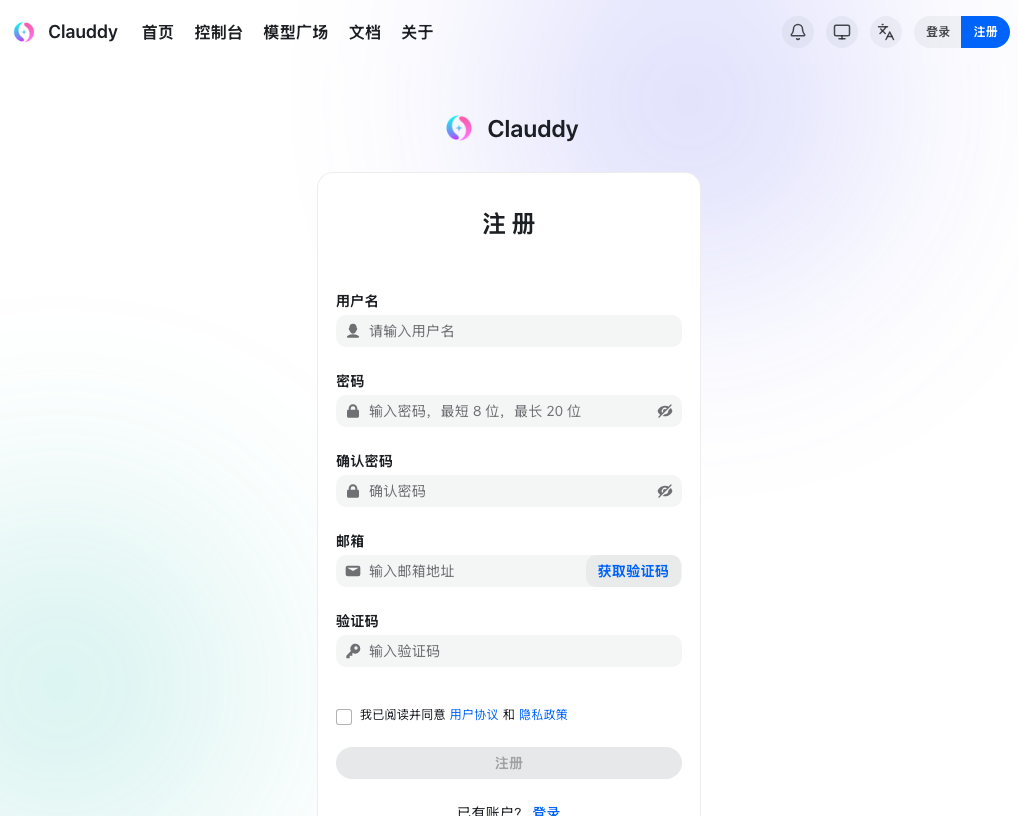
Visit https://clauddy.com/register to create your account.
- Choose a username
- Set a password (8-20 characters)
- Enter your email and click "Get Verification Code"
- Enter the verification code
- Check "I agree to the User Agreement and Privacy Policy"
- Click "Register"
TIP
Keep your credentials safe. Use a strong password.
2. Login
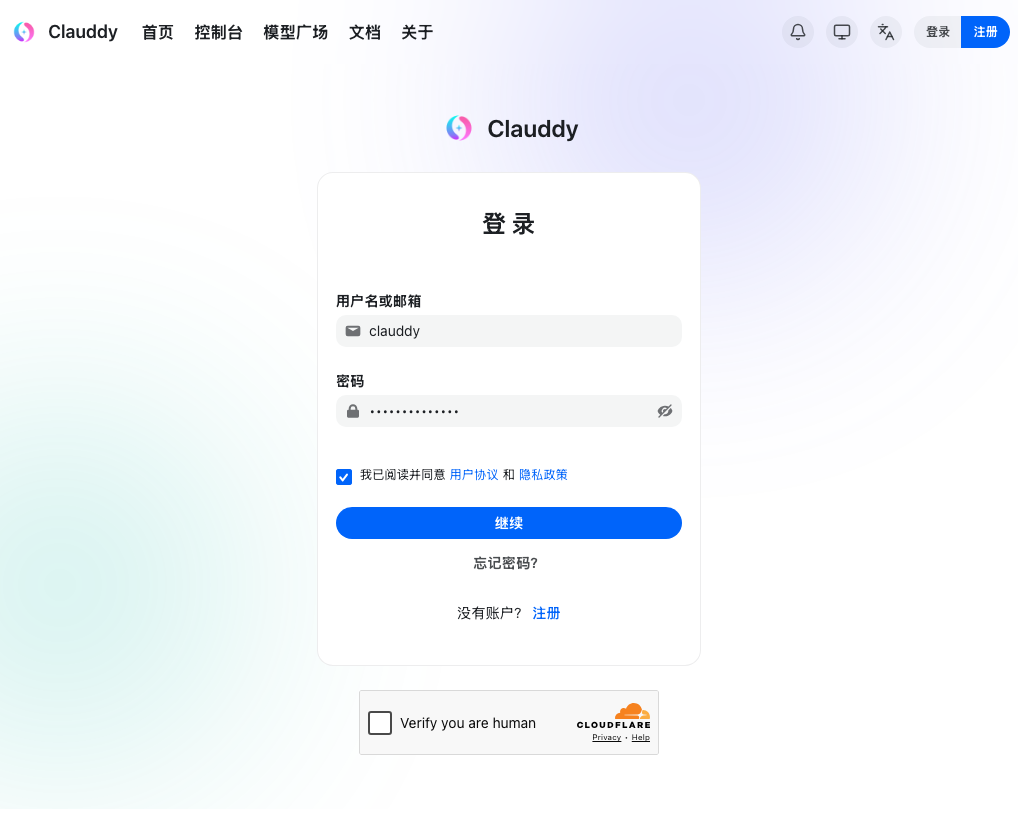
Visit https://clauddy.com/login to sign in.
- Enter your username or email
- Enter your password
- Click "Continue"
WARNING
Multiple failed attempts may temporarily lock your account. Click "Forgot password?" to reset via email.
3. Top Up Credits
Clauddy uses a prepaid credit system denominated in USD.
After logging in, navigate to "Wallet" in the sidebar, or visit https://clauddy.com/console/topup.
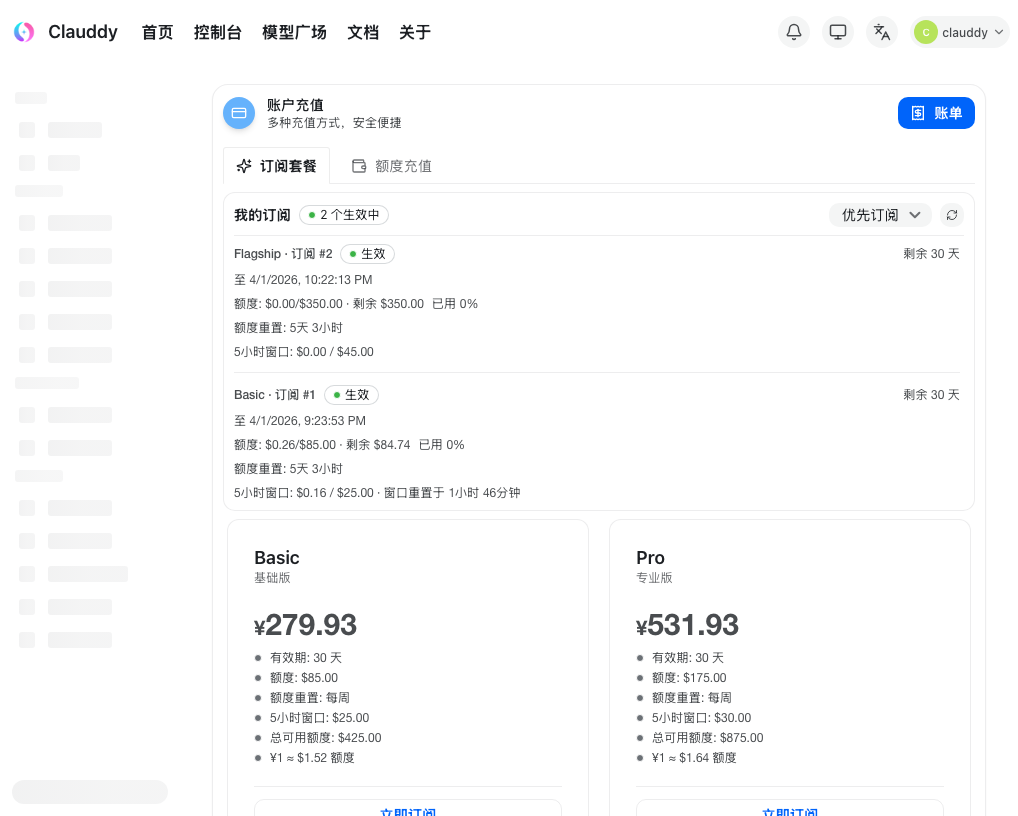
- Credits are in USD
- Different models have different per-token costs — see Model Marketplace
- API stops responding when credits run out
- View balance and usage history on your dashboard
Transparent Billing
Every API call is logged with exact cost. Check your usage logs anytime.
4. Create API Token
API tokens are your credentials for calling the Clauddy API.
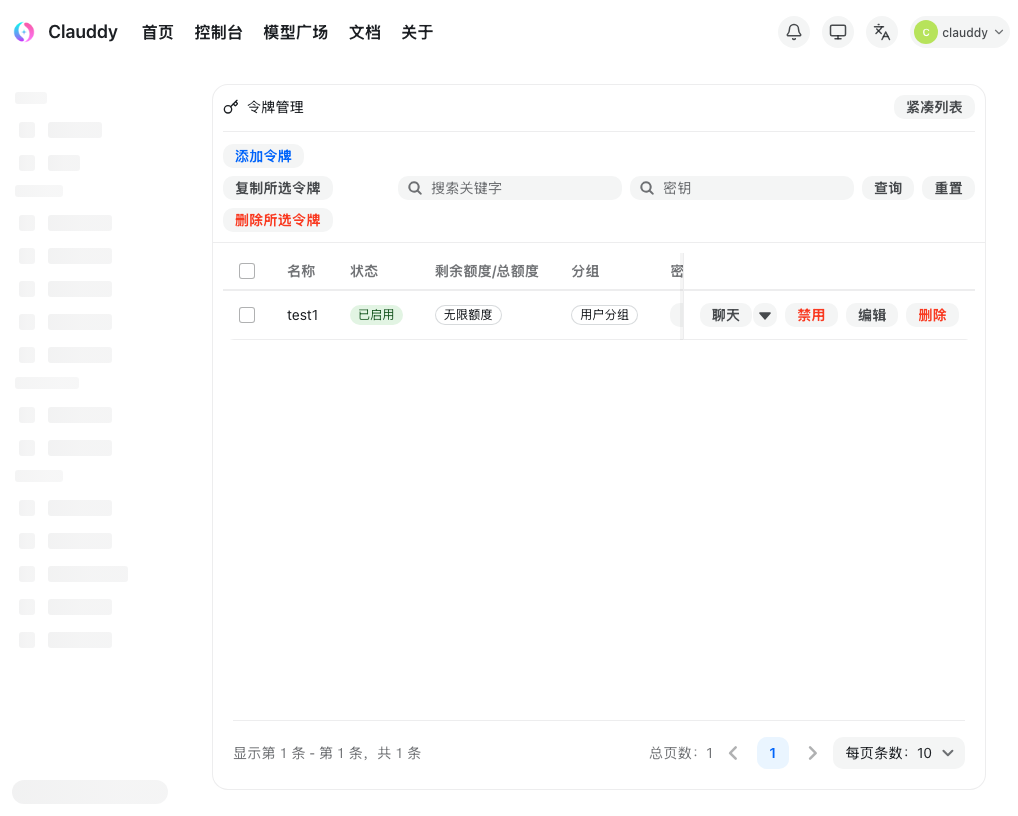
Go to "Token Management" in the sidebar, or visit https://clauddy.com/console/token.
- Click "Add Token"
- Name your token (e.g.,
claude-code,codex) - Select a token group (determines which models you can access — see Token Groups)
- Set quota limit (optional)
- Set expiration (optional)
- Click "Submit"
Security Warning
- Copy and save your token immediately — it's only shown in full once
- Never share tokens or commit them to public repos
- If a token is leaked, delete it immediately and create a new one
- Create separate tokens for different tools for better tracking
Token format: sk- prefix, compatible with OpenAI API key format.
5. Configure CLI Tools
Clauddy is OpenAI API-compatible, working directly with popular AI CLI tools.
| Tool | Description | Guide |
|---|---|---|
| Claude Code | Anthropic's coding assistant | Setup Guide |
| Codex | OpenAI's coding assistant CLI | Setup Guide |
| Gemini CLI | Google's Gemini CLI | Setup Guide |
General steps:
- Verify your environment → Environment Check
- Create an API token with the right group (see step 4 above)
- Follow the tool-specific setup guide
- Test the connection
TIP
You can use one token for multiple tools if the group covers all needed models. But separate tokens per tool makes usage tracking easier.